Every module, explained
A detailed walkthrough of every screen in the app's menu, in the order it appears in Shopify Admin — what each one is for, what you can configure, and how it connects to the rest of the app.
1. Orders (home screen)
The app's landing page — every real Shopify order, ready to become an invoice.
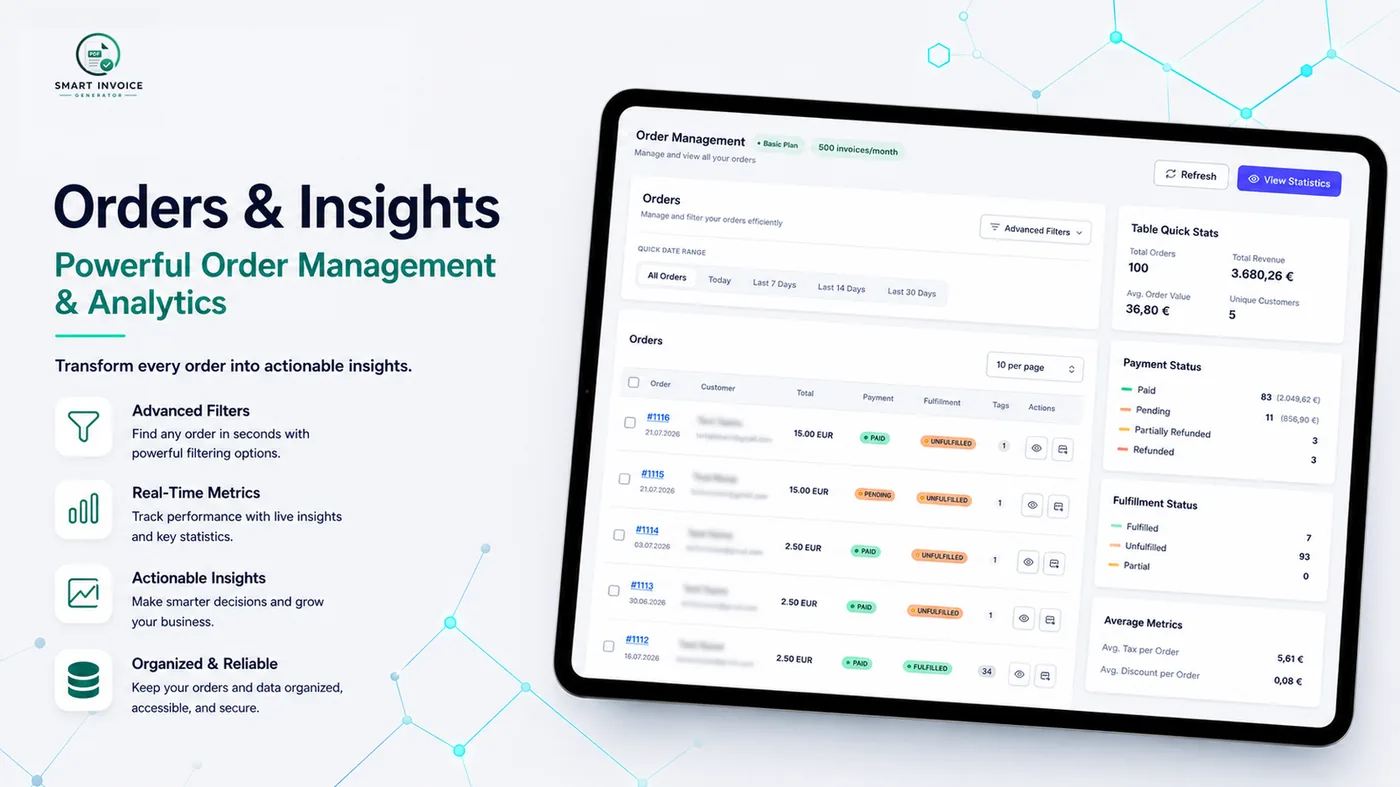
Each row is a Shopify order. Use the quick date-range buttons (Today / Last 7 / 14 / 30 days) or open Advanced Filters for order number, email, tag, a custom date range, payment status and fulfillment status — active filters show as removable chips.
Per-order actions
- Click the order number to open its Invoice Detail screen
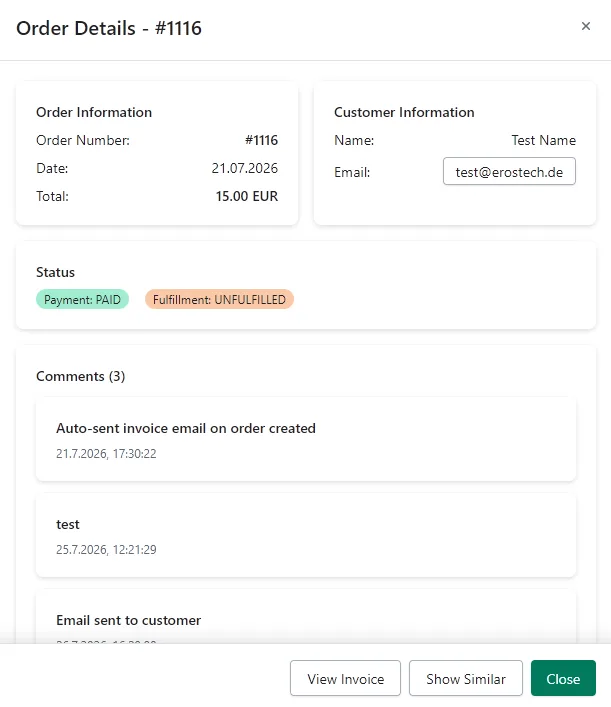
- The eye icon opens an order details modal (customer info, status, tags, comments, similar invoices from the same customer)
- The envelope icon opens the Send Invoice screen
Bulk actions
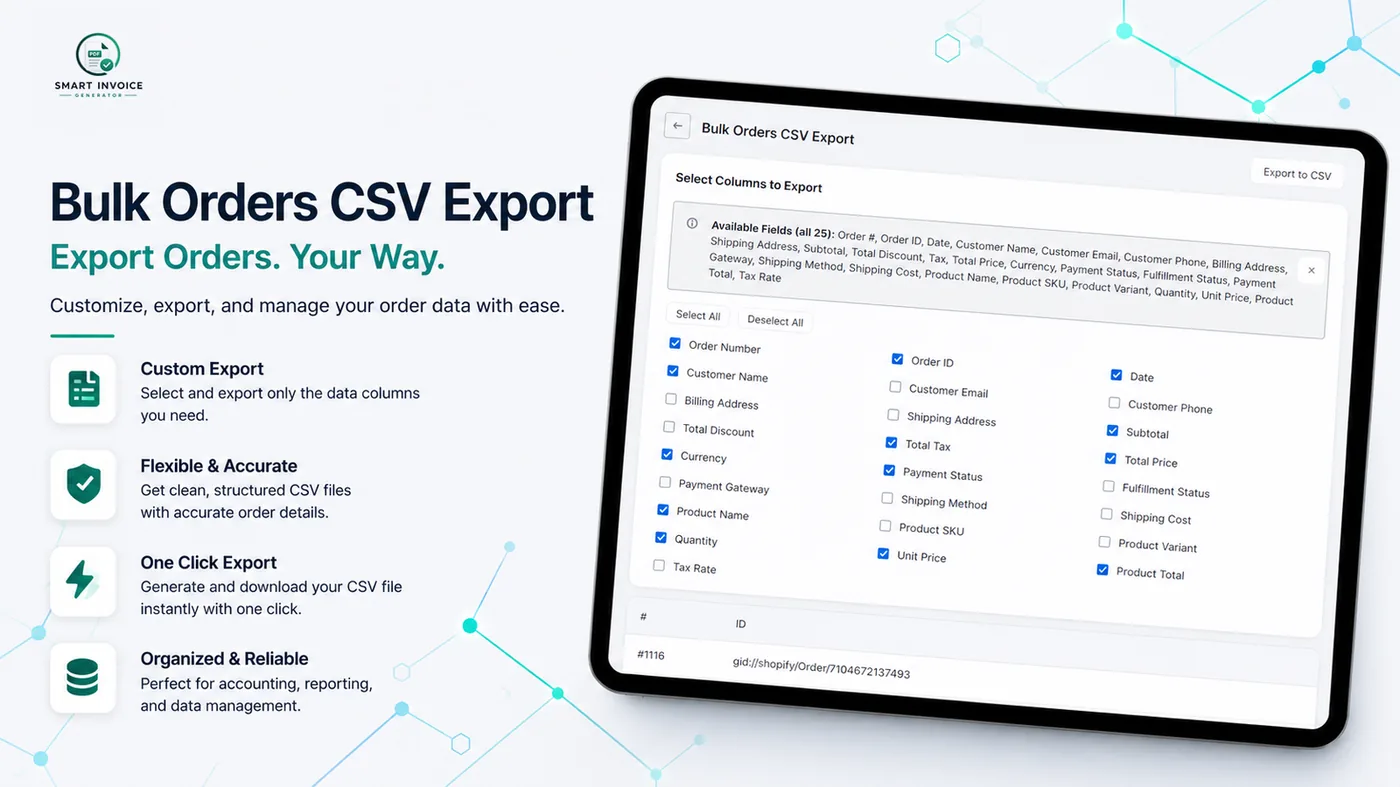
Select up to 10 orders at once to Download as ZIP, Download as CSV, Send Bulk Email (Basic/Business), or add a comment to all selected orders.
Order Insights & Statistics
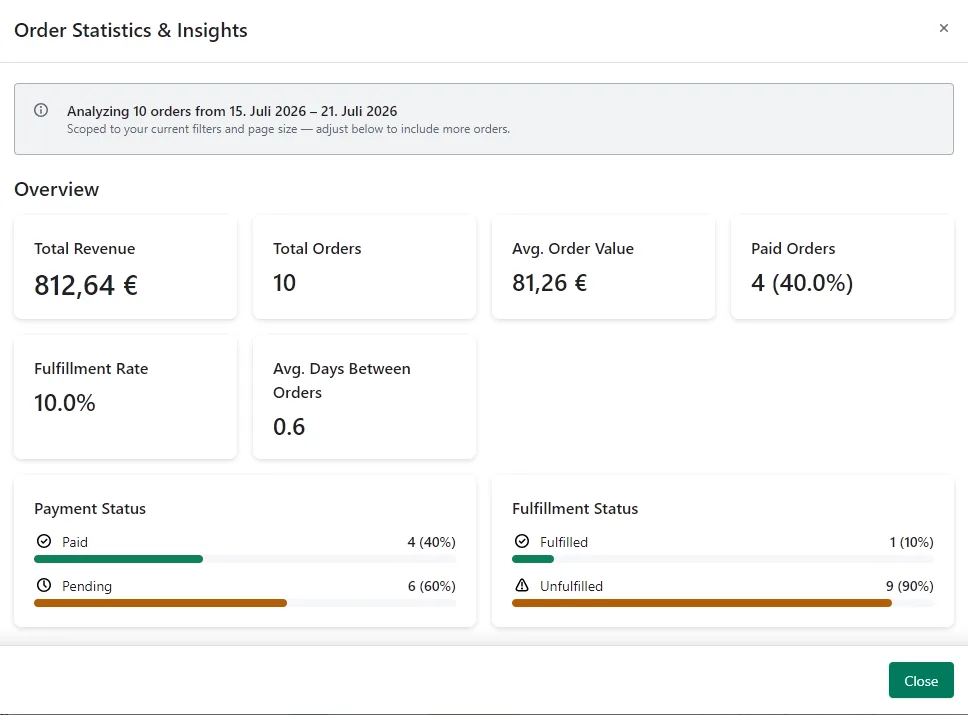
The right-hand panel shows quick stats (revenue, average order value, unique customers, payment/fulfillment breakdown). The View Statistics button opens a fuller modal, with an "Advanced Insights" section (top customers, top tags, refund/pending totals) on Basic and Business plans.
2. Draft Orders
Same screen as Orders, for Shopify draft orders (quotes and manually created orders).
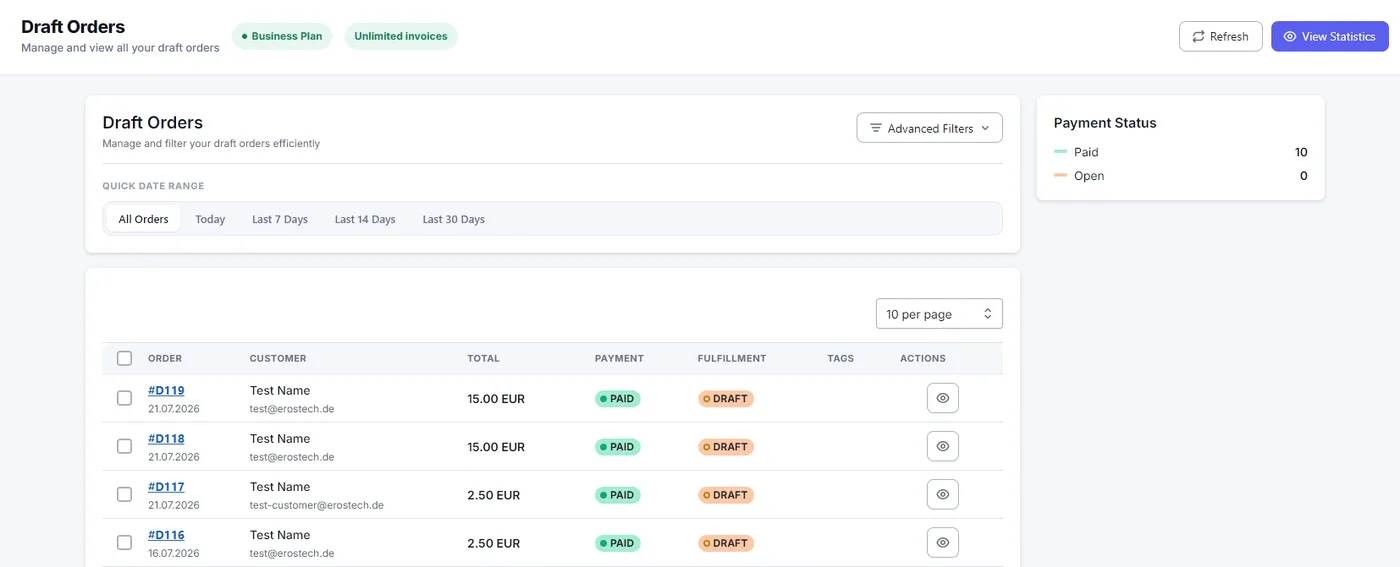
Filters use a Draft Status option (Open / Invoice Sent / Completed) instead of payment status. Bulk actions are limited to downloading invoices — there's no bulk CSV export or bulk email for drafts.
3. Invoice Detail
The working screen for a single order's invoice — review, adjust, preview, download.
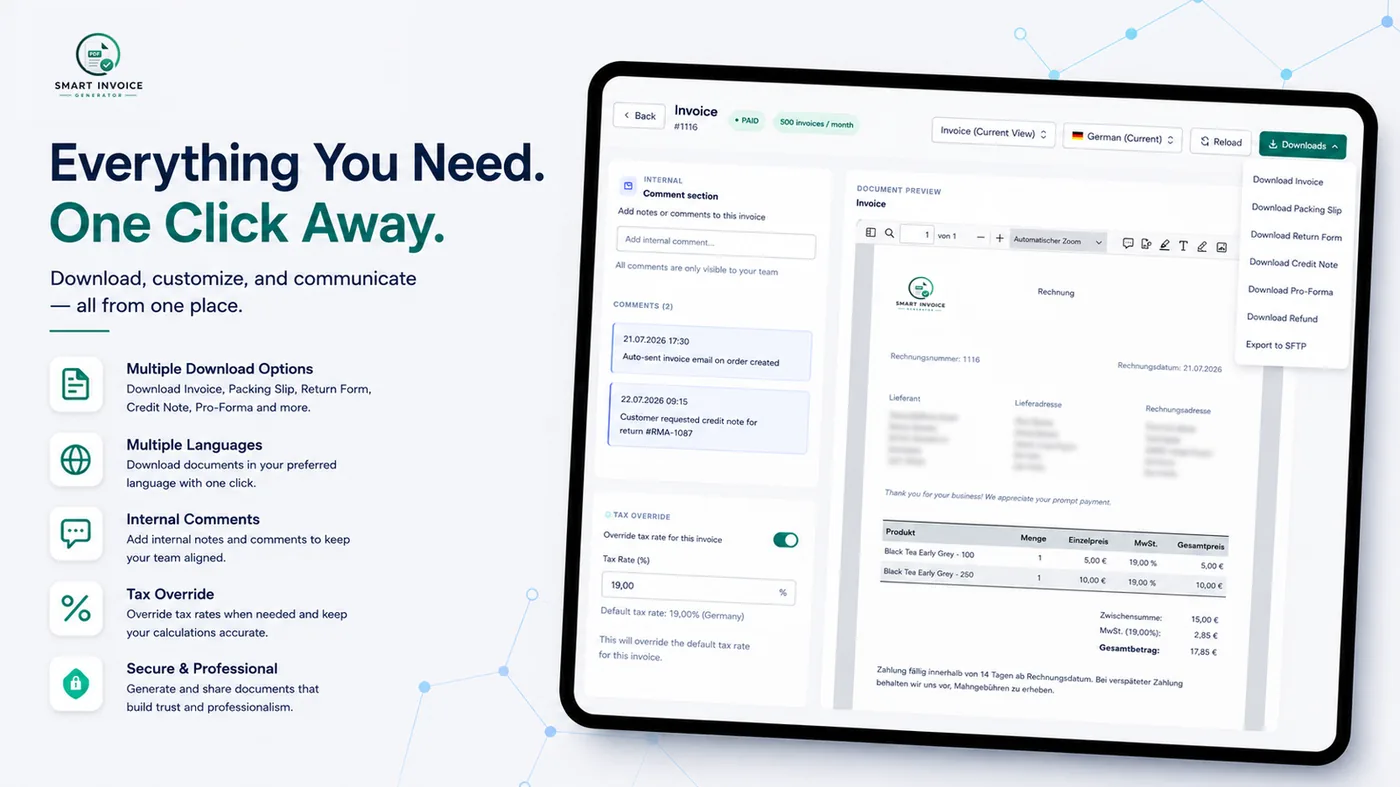
- Document type: Invoice, Packing Slip, Refund, or Pro Forma Invoice (Basic+)
- Language: choose the language for this specific document
- Downloads menu: download any document type; on Basic/Business also Return Form and Export to SFTP
- Fix Invoice: sends the order's data into Custom Documents so you can correct a field without touching the real Shopify order
- Tax card: apply a tax override rule or enter a customer's VAT/tax number
- Comments: internal notes, never shown to the customer
- Payment information card (Basic+, if enabled in Settings): payment gateway and method
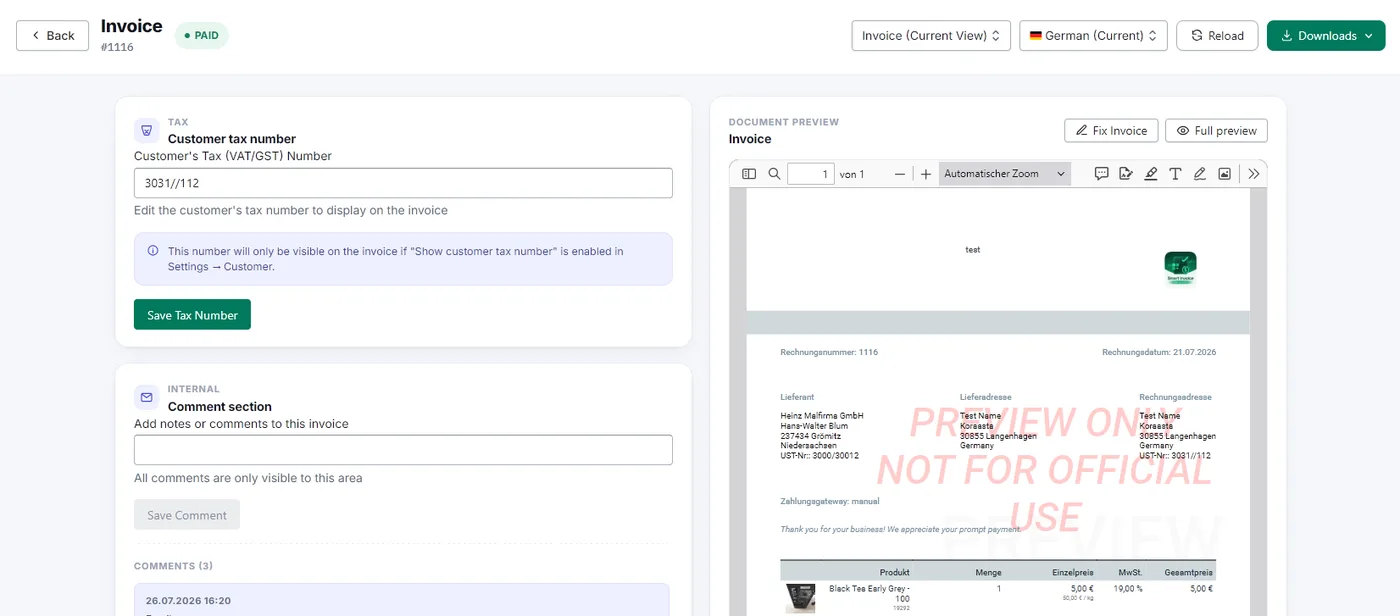
Draft orders have their own version of this screen with a slightly simpler action bar (no Refund/Pro Forma, no Fix Invoice).
4. Custom Documents
Build a document from scratch — not tied to a real Shopify order.
Use this for offline sales, manual quotes, or a corrected invoice sent over from "Fix Invoice". It has two tabs:
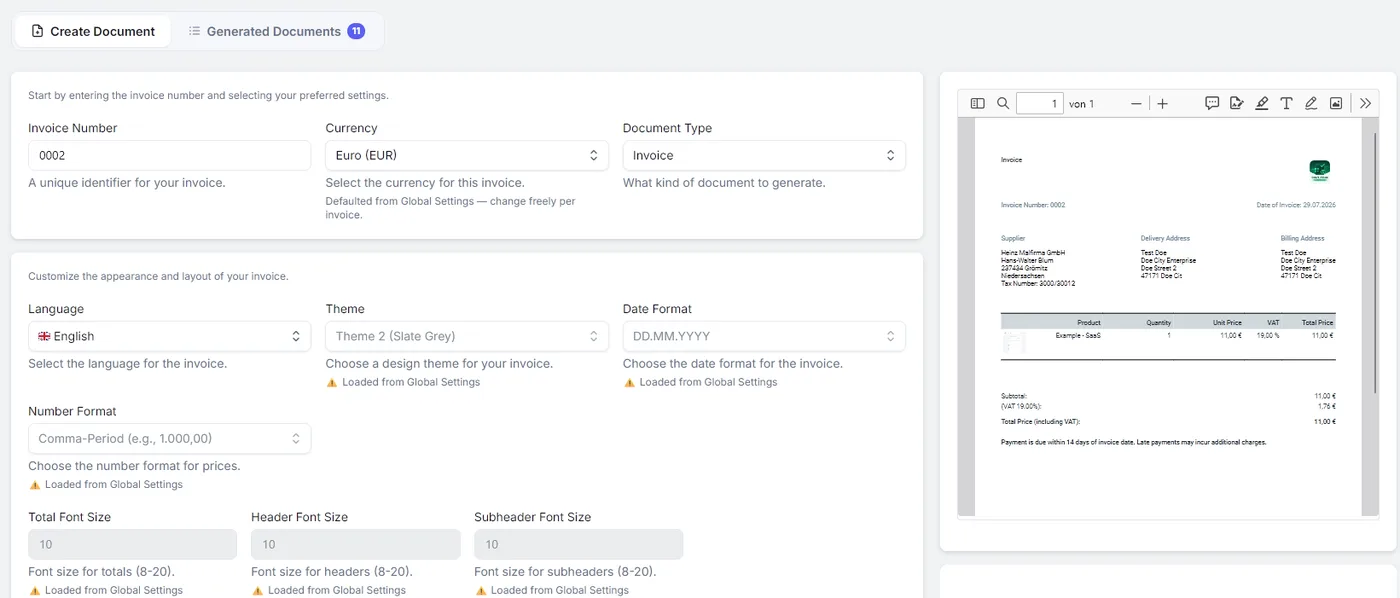
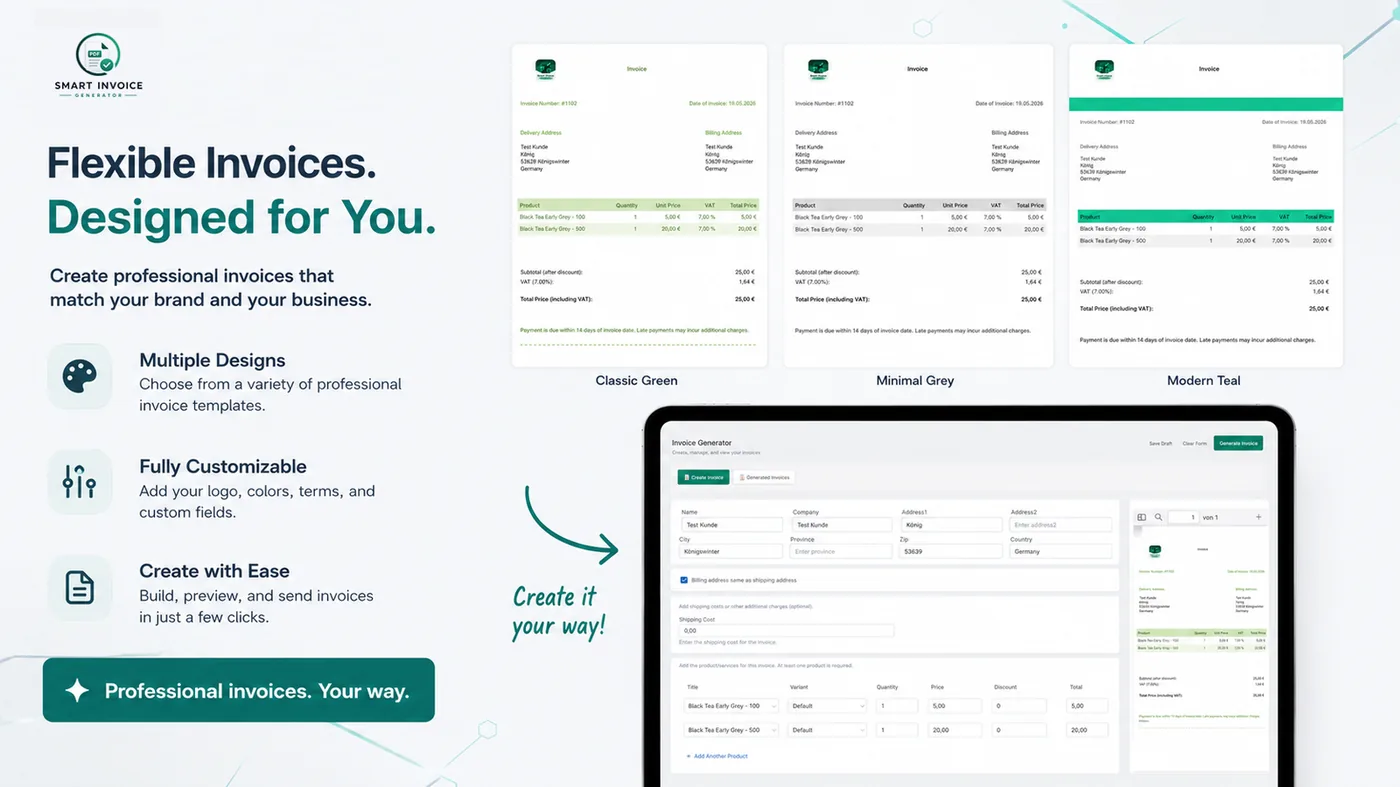
Create Document
- Invoice Details: invoice number, currency, document type (Invoice / Packing Slip / Quote), "valid until" date for quotes
- Design & Display: language, theme, date & number format, payment terms, footer text, VAT and tax settings
- Products & Addresses: add line items (title, variant, quantity, price, discount, tax rate, optional SKU/image) and shipping/billing addresses
- Saved Drafts: work in progress, saved locally in your browser (not synced across devices)
Generated Documents
Finished documents are stored server-side (your 50 most recent), with preview, delete, CSV export and bulk delete — unlike drafts, these are available on any device.
5. Translations
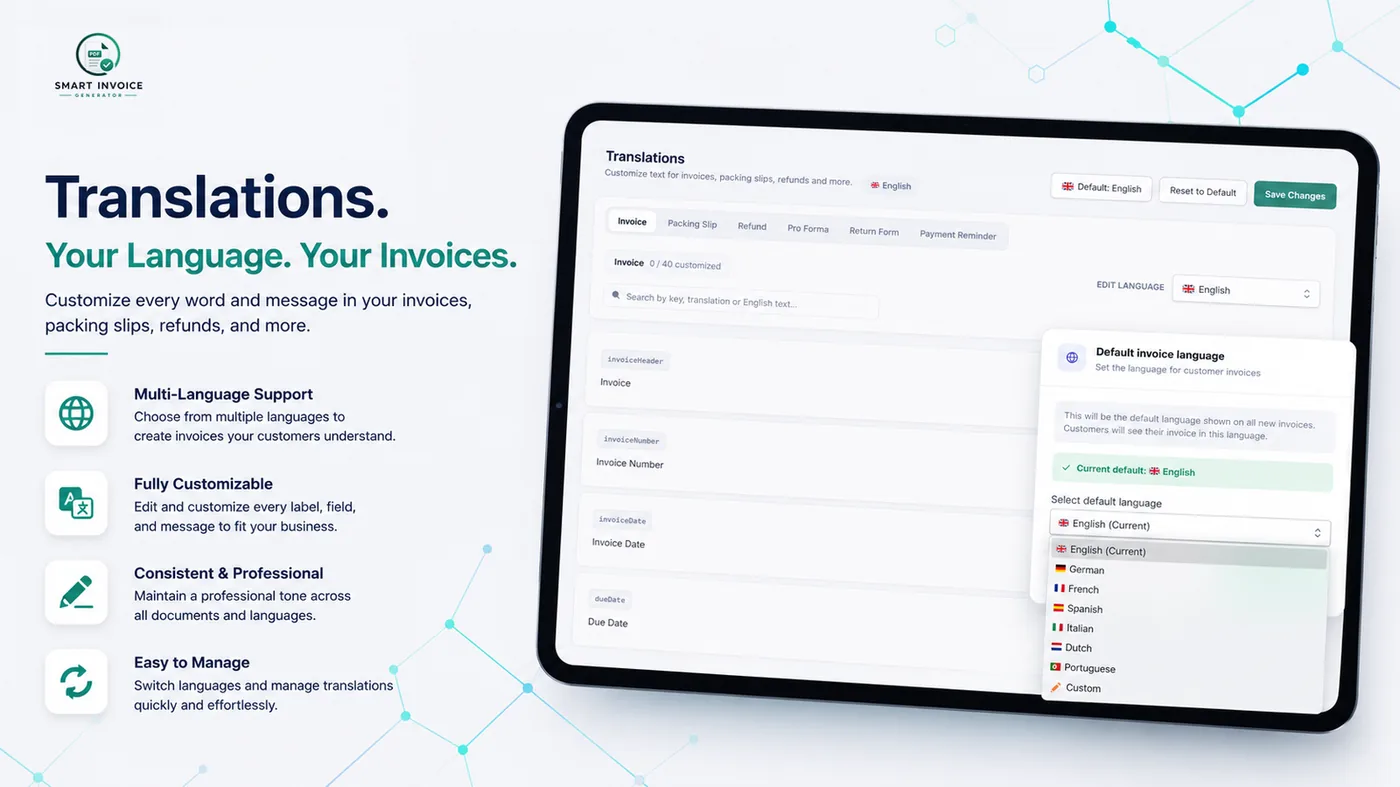
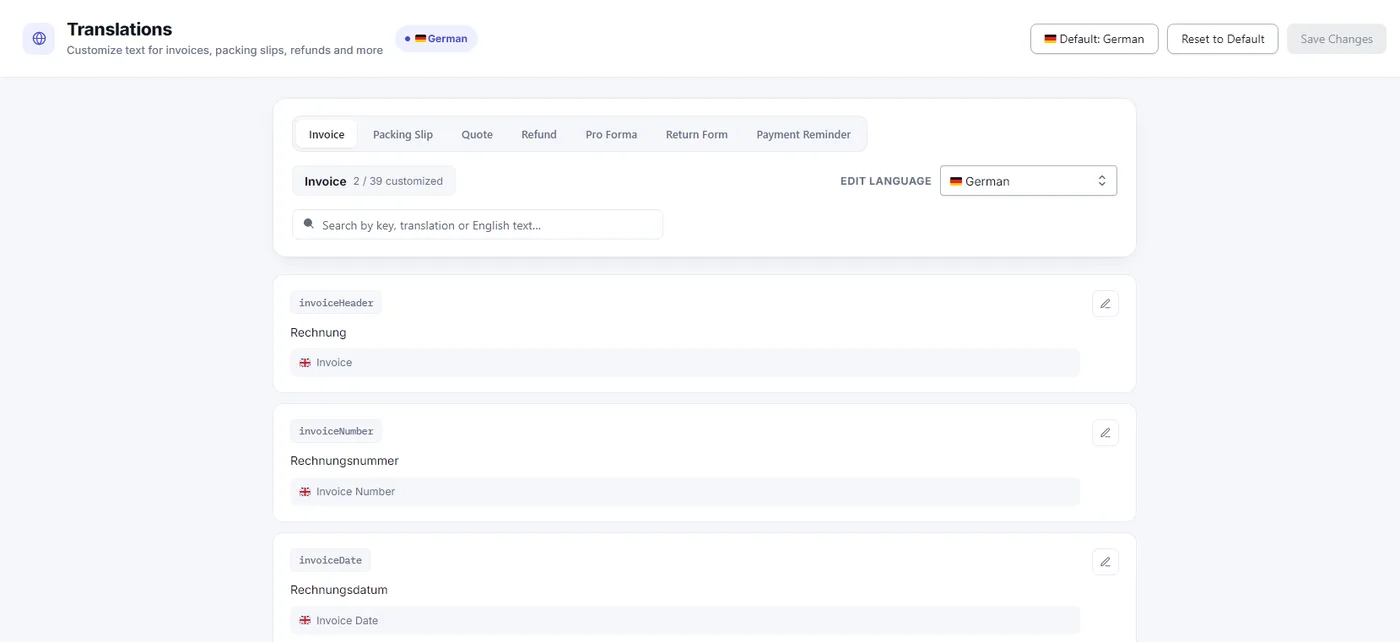
Customize the wording that appears on your documents, per language.
Pick a document type (Invoice, Packing Slip, Quote, Refund, Pro Forma, Return Form, Payment Reminder) and a language to edit, then override individual text labels inline. Set your shop's default language, or manage a fully custom language with JSON import/export. See the dedicated Languages page for the full list of supported languages.
6. Settings & Design
The central configuration hub for how every document looks and behaves, with a live preview panel.
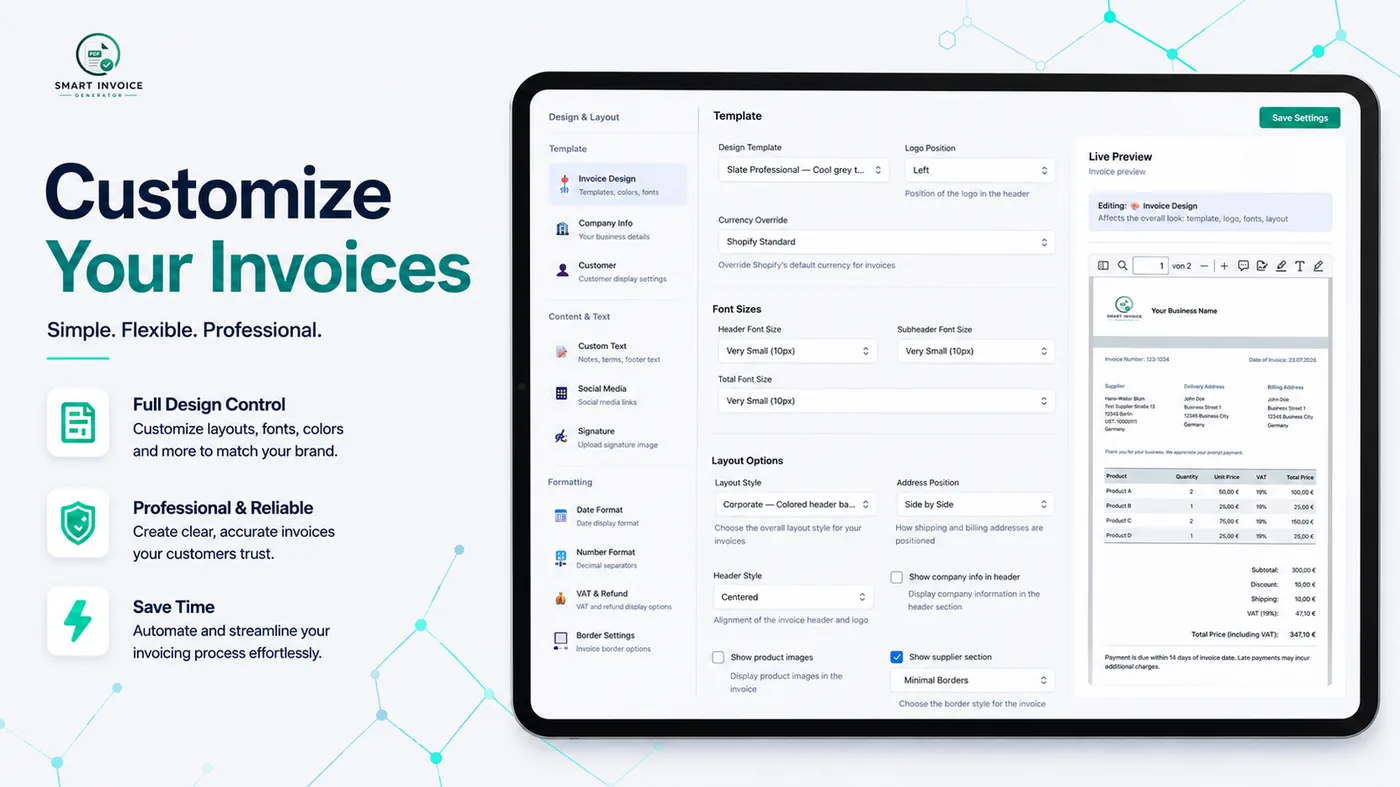
Organized into six groups: Design & Layout, Content & Text, Formatting, Special Features, Numbering, Payments & Reminders, and System. Every one of the 23 panels — with a screenshot, plain-English explanation and a concrete example — is covered on the dedicated Settings in Detail page, including a full Dynamic Variables Reference for the email, QR code and invoice numbering variables.
7. Email Settings
Everything about how invoice and reminder emails look and where they're sent from.
- A status card shows whether auto-send is active, with a link back to the trigger setting in Settings
- Sender Information: display name, reply-to, CC, BCC
- Email Template: subject and body, with a variable picker (customer name, order number, download link, shop name, and more)
- Payment Reminder Emails: separate subject/message for each reminder level, including a final reminder
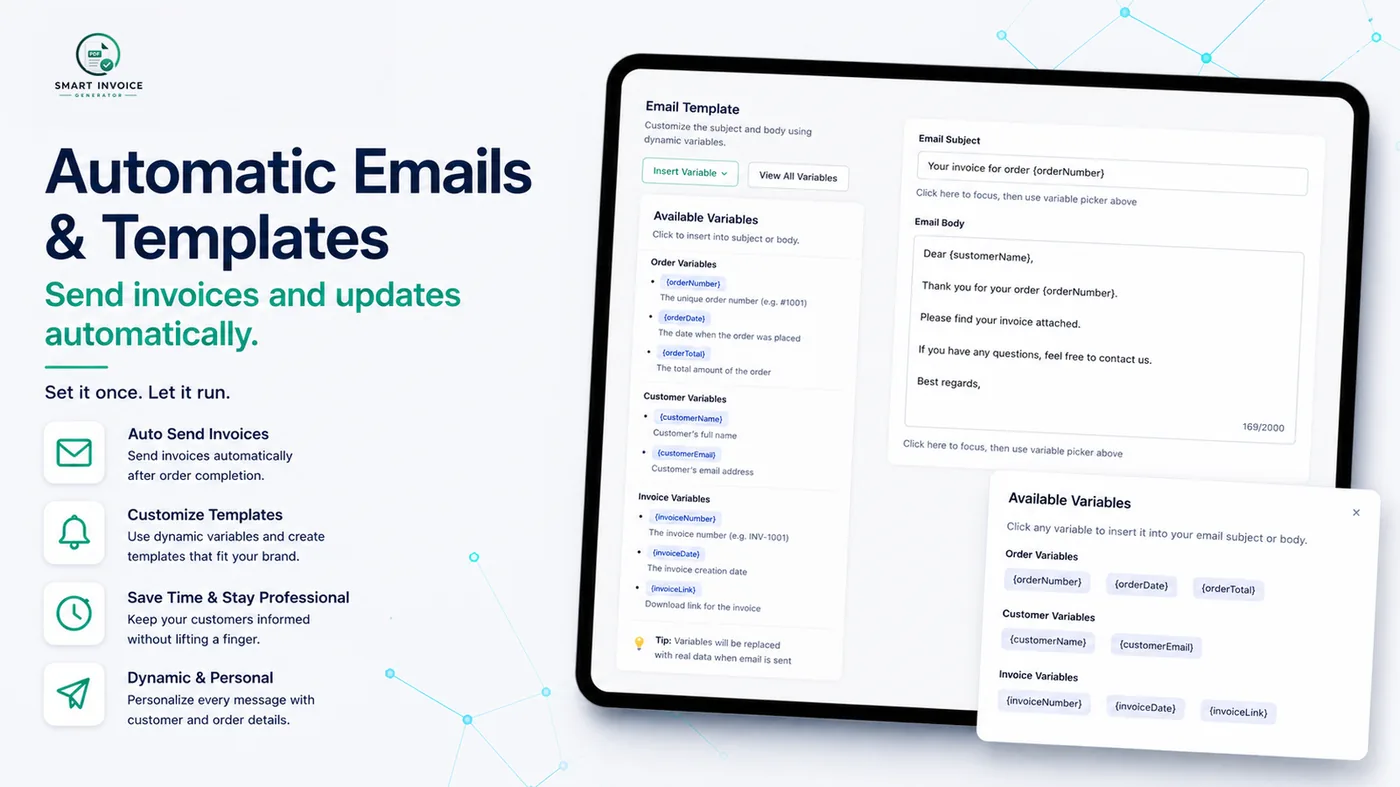
Use Preview Email to see the template rendered with sample data before saving.
8. Send Invoice screen
Reached via the envelope icon on Orders/Draft Orders — the review-and-send screen for one order.
Switch between Invoice and Packing Slip, then use the tabs: Send Invoice (To/CC/BCC/Reply-To, live email + PDF preview), Comments, and Send Reminder (pick a reminder level configured in Settings and send it manually).
9. Notification Button
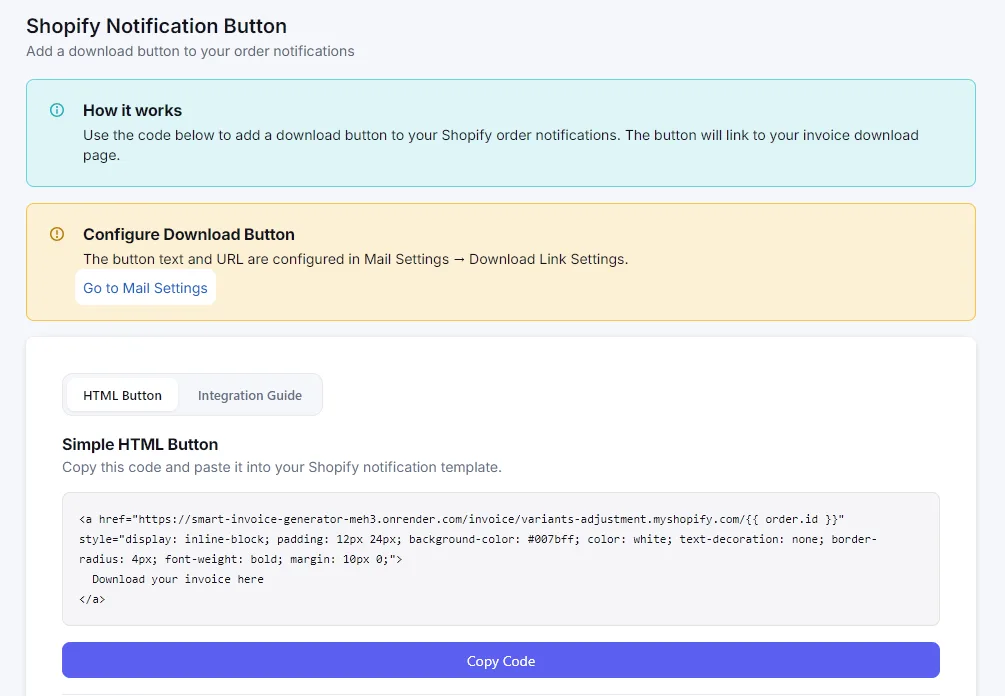
Embed a "Download your invoice" button directly inside Shopify's own order-confirmation emails.
Copy the ready-made HTML (built from your Download Link settings) into a Shopify notification template, or customize the button's styling first. The Integration Guide tab walks through the exact steps in Shopify Admin → Settings → Notifications.
10. Manage Plan
Your billing overview — plan changes happen through Shopify's native billing page.
Shows your current plan, monthly invoice usage with a progress bar, and a full feature comparison table across Free, Basic and Business. See the dedicated Pricing & Plans page for the complete breakdown.
11. Contact Support
A simple support form, right inside the app.
Name, email, subject and message, with an optional image or PDF attachment (up to 10MB). Support hours are Monday–Saturday, 9:00 AM–5:00 PM.
12. Download History BASIC+
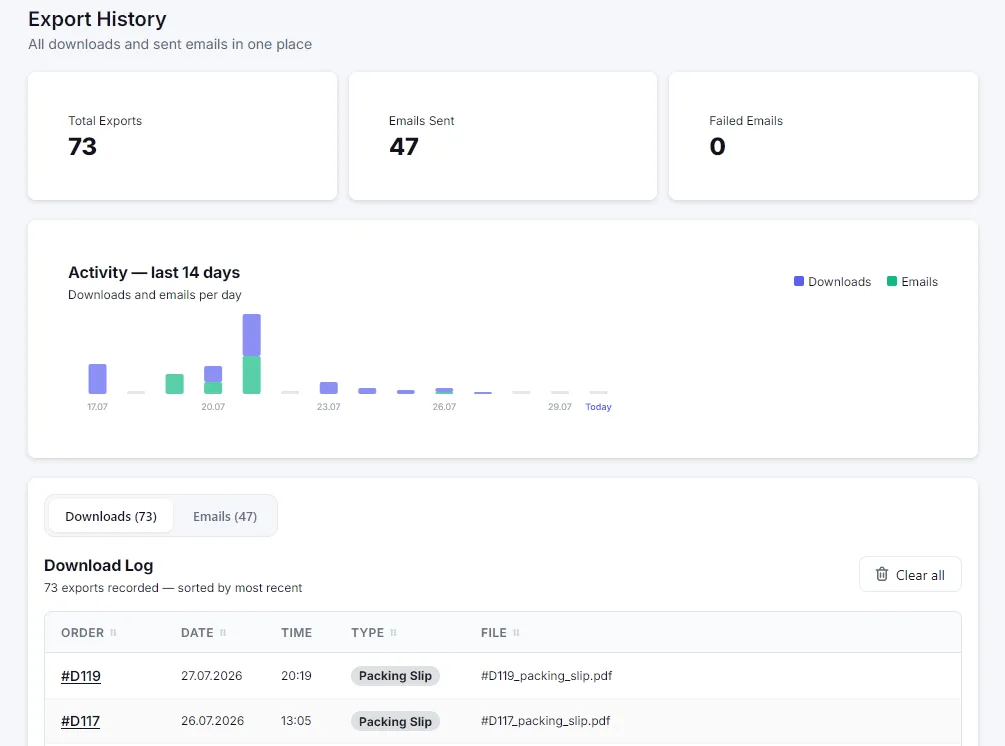
A complete audit log of every PDF downloaded and every email sent from the app.
An activity chart shows the last 14 days of downloads vs. emails; two tables (Downloads, Emails) let you trace any document back to its order, with date, time, type and status.
13. SFTP Server Export BASIC+
Automatically back up generated invoices to your own server for archival or compliance.
Enter your host, port, username and password, choose a folder structure (by year, or year and month), and optionally enable auto-upload so every invoice you generate is uploaded automatically. A live connection indicator and a Test Connection button confirm your setup is working, and an export history table tracks every upload.
14. Bulk Actions
Reached by selecting rows in Orders or Draft Orders — capped at 10 orders per action.
- Bulk PDF Download: one ZIP file with an individual PDF per order
- Bulk CSV Export: choose which columns to include — 13 fixed fields on Free, up to 25 selectable fields on Basic/Business
- Bulk Email BASIC+: sends one by one with a live progress and success/failure status per order