
Every setting, explained with examples
A deep dive into the Settings & Design hub — grouped exactly as it appears in the app, with a screenshot, a plain-English explanation and a concrete example for every panel. New here? Start with Modules & Settings for the big picture first.
Design & Layout
The visual foundation — template, logo, layout structure and business data.
Invoice Design
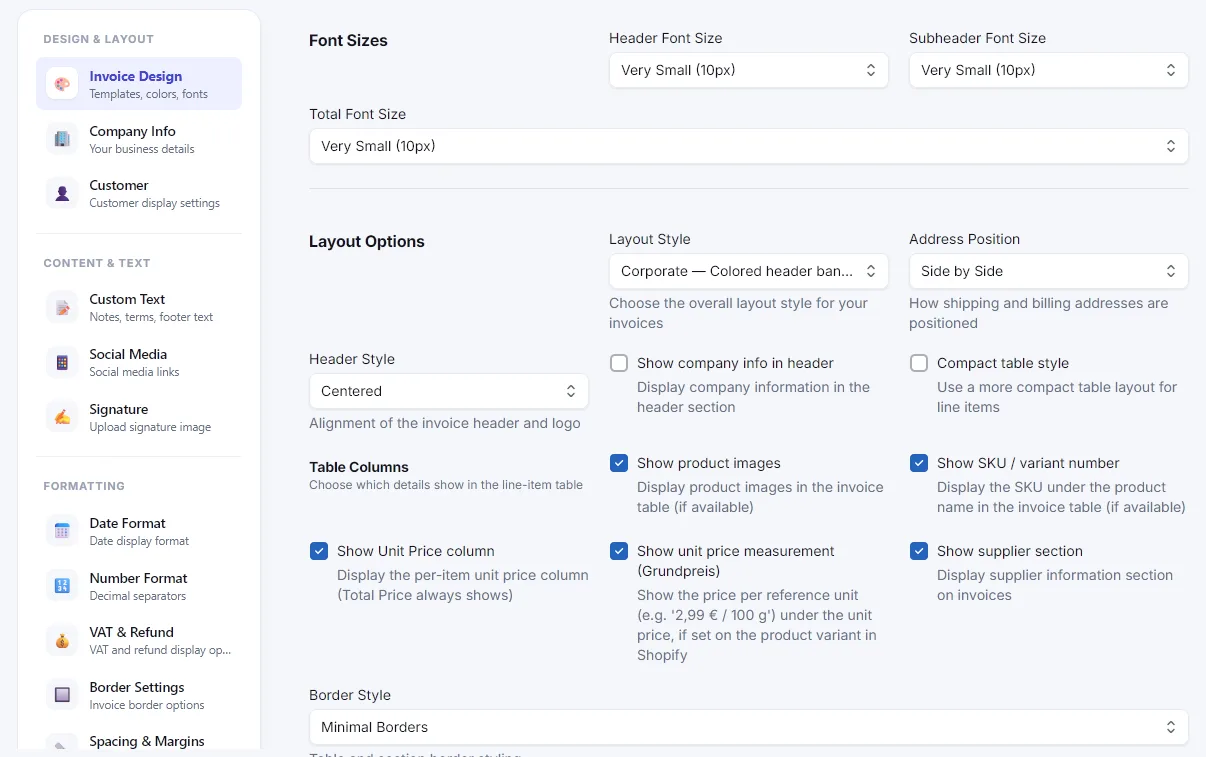
Pick a template, upload your logo, and set fonts — the base look for every document.

- Choose one of 10 ready-made design templates, or switch to a fully custom color scheme
- Upload your logo and choose header alignment: left, centered, or right
- Override the currency symbol shown on documents, independent of the order's actual currency
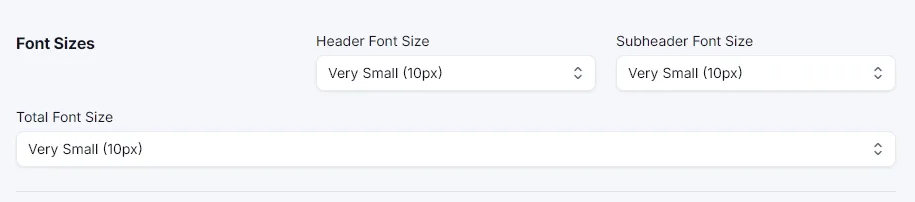
- Set header, subheader and total font sizes independently (8–20px)
Logo & Branding
Your logo appears on every generated document, sized and positioned automatically.
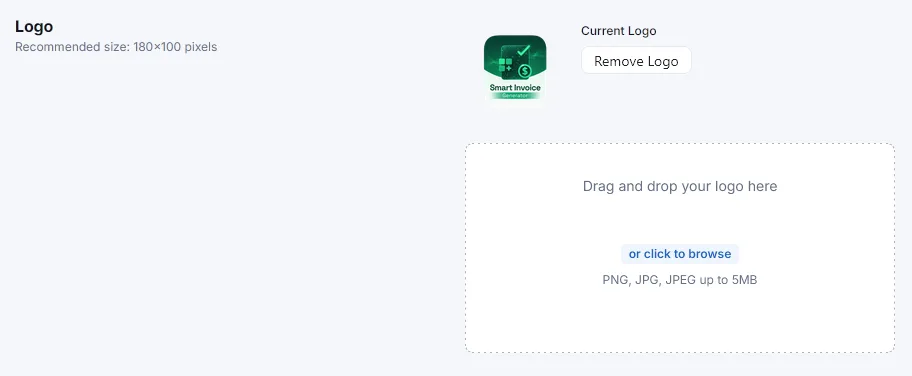
- Upload a PNG or JPG logo — it's embedded directly into generated PDFs
- Combine with the Header Style option (Centered / Side by Side) to control the overall header layout
Company Info
Use your own business details instead of pulling them from Shopify.
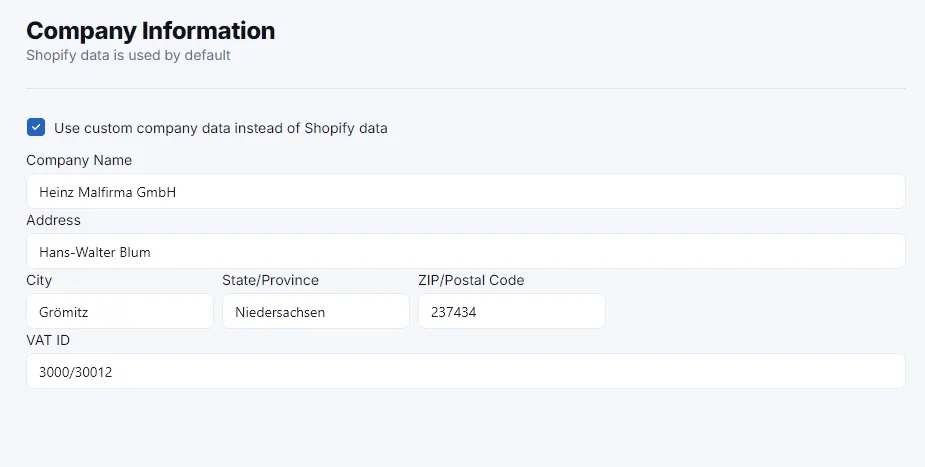
- Override name, address and VAT ID shown on every document
- Useful if your legal entity or billing address differs from your Shopify store profile
- Leave a field empty to fall back to the Shopify default
Customer Display & VAT Numbers
Control what customer information appears on documents, and manage stored VAT numbers.
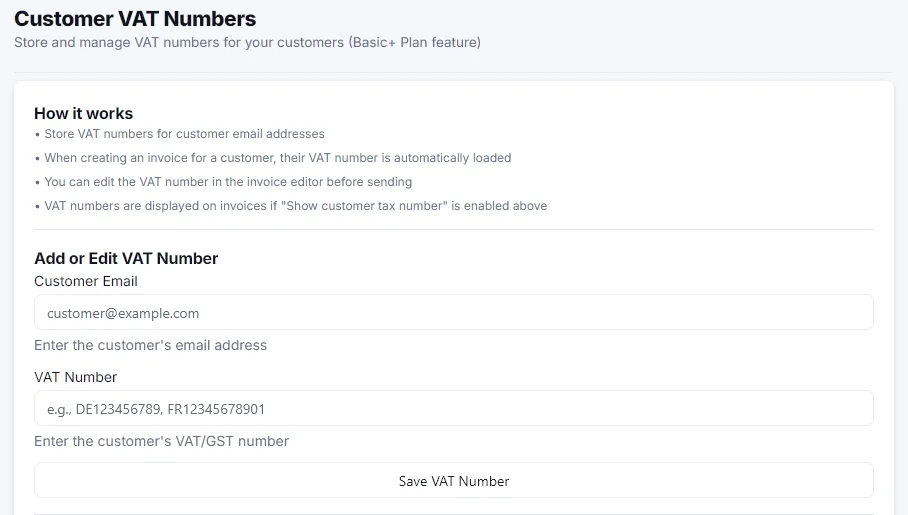
- Toggle whether the customer's country and tax number are shown on documents
- Store and edit a customer's VAT/GST number for reuse across future invoices (Basic+)
- A saved number can also be corrected per-invoice from the Invoice Detail screen
Layout Options
The structural layout of the document — independent from the visual template.
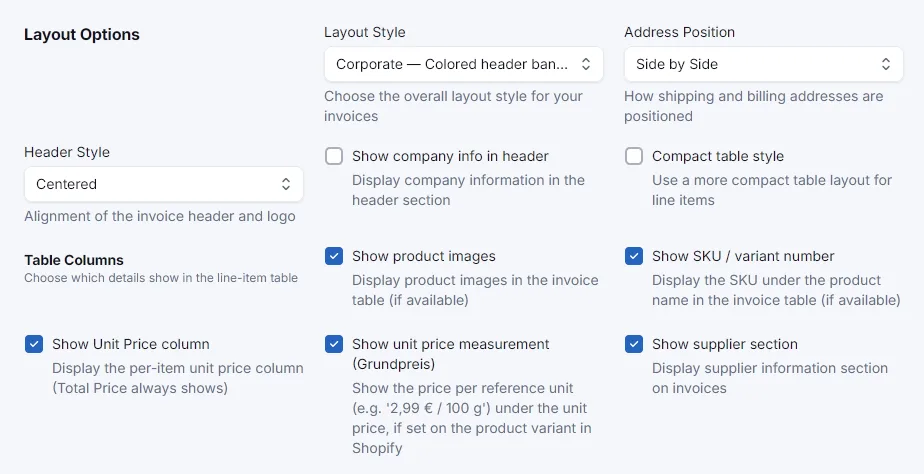
- Layout Style: Standard, Compact, Modern, Classic, Executive, Minimal, or Corporate (colored header banner)
- Address Position: side by side or stacked
- Table Columns: show/hide product images, unit price, unit-price measurement ("Grundpreis"), SKU/variant number, supplier section
- Compact table style for denser line-item tables
Billing Country & Currency
The default billing country and currency new documents start with.

- Sets the default currency for Custom Documents and as a fallback across the app
- Independent from each order's actual currency, which is always used for real Shopify orders
Content & Text
The written and visual extras that appear on your documents.
Custom Text
The written parts of your documents — notes, terms and footer text.
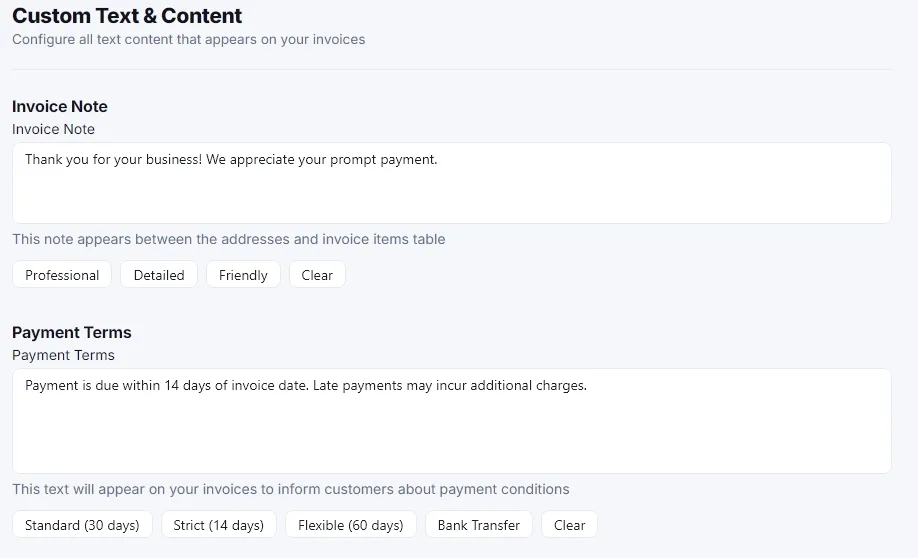
- Invoice note, payment terms, footer text, packing slip note, and refund note — each editable independently
- Quick-fill templates give you a solid starting point you can then adjust
Signature
A personal touch — your signature image and a label underneath it.
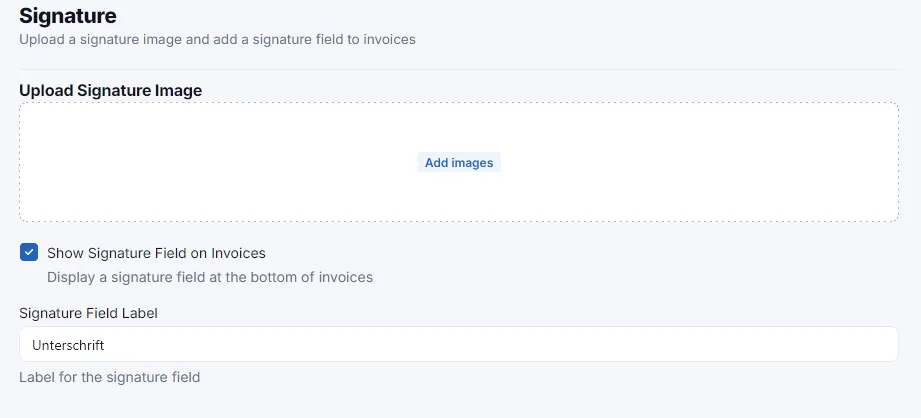
- Upload a signature image (e.g. a scanned or digitally drawn signature)
- Add a label, such as a name or "Authorized signature"
Invoice Header Text
Separate header text for regular invoices vs. draft order invoices.
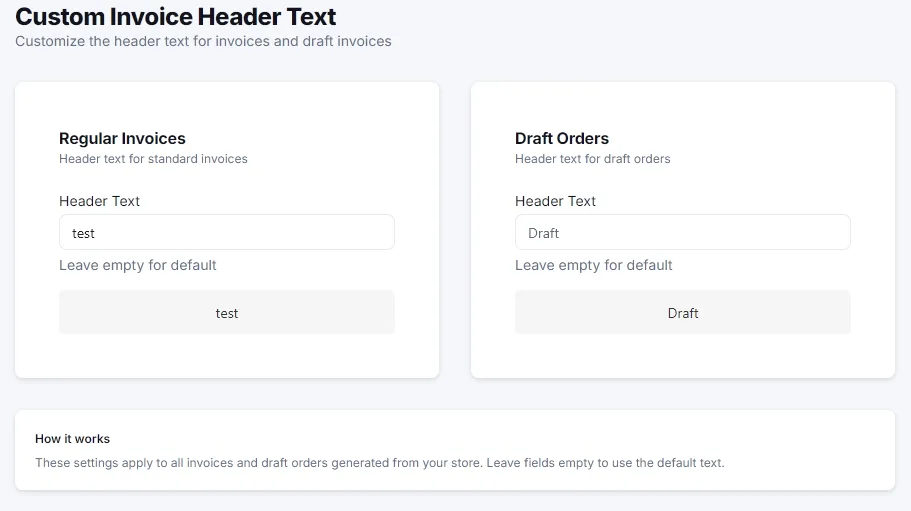
- Set different header wording depending on whether the source is a completed order or a draft order
- Useful if you want draft-order documents to read as a "Quote" rather than an "Invoice"
Formatting
How dates, numbers, borders and spacing are rendered.
Date & Number Format
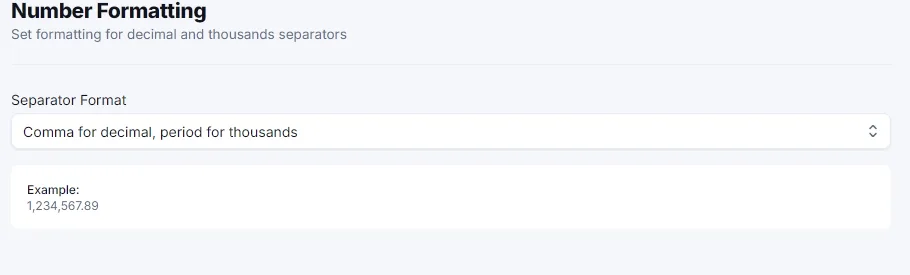
How dates and prices are written on every document.
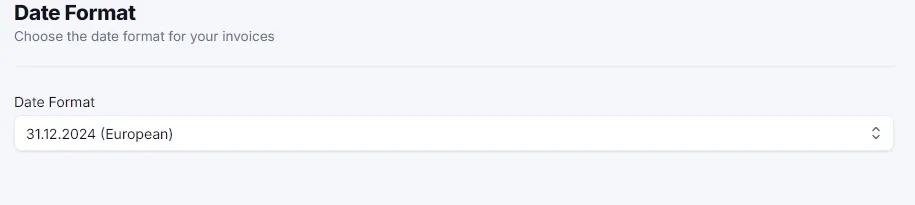
- Date Format: choose from several patterns, e.g. DD.MM.YYYY or MM/DD/YYYY
- Number Format: decimal and thousands separator style, e.g. Comma-Period (1.000,00) or Period-Comma (1,000.00)
VAT & Refund Display
Control whether and how tax and refund amounts are shown.
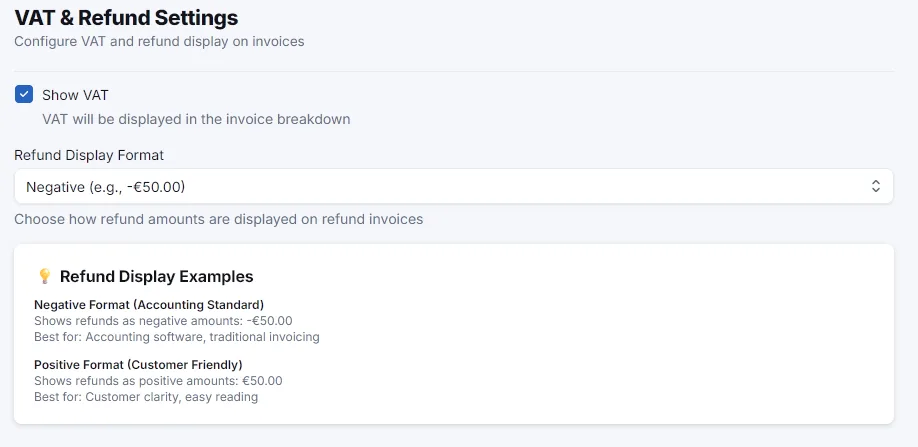
- Show or hide the VAT breakdown on documents
- Choose how refund amounts are displayed on refund documents
Border Settings
Fine control over the document's borders.
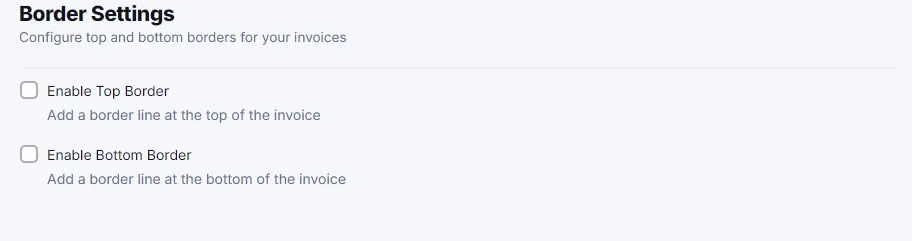
- Toggle top and bottom borders independently
- Set border color and width
Spacing & Margins
Fine-tune whitespace across the document.
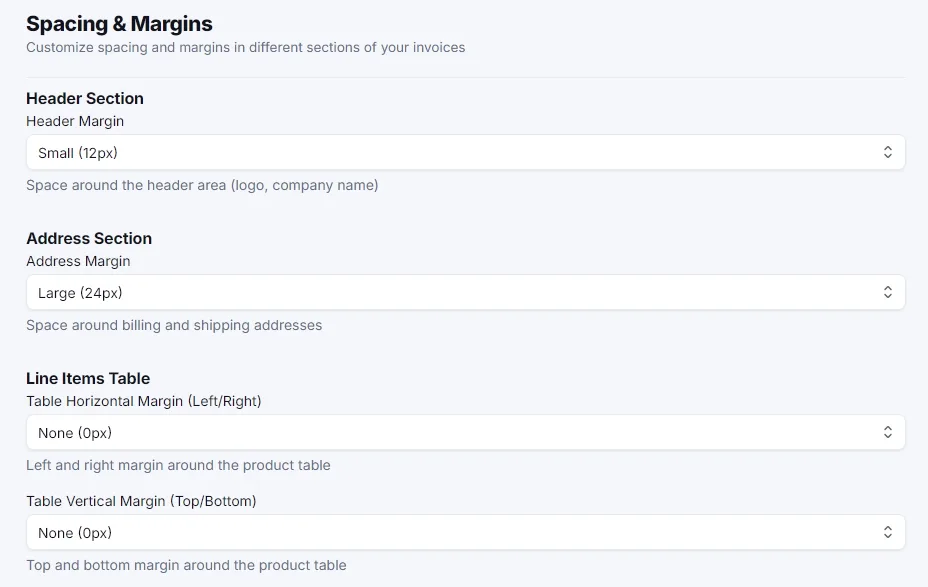
- Separate margin controls for header, address block, line-items table, totals and footer
- Useful for matching a specific paper layout or fitting more content on one page
Special Features
Optional add-ons: stamps, QR codes, tax rules, return forms and filenames.
Paid Stamp
An optional "Paid" stamp overlaid on settled invoices.
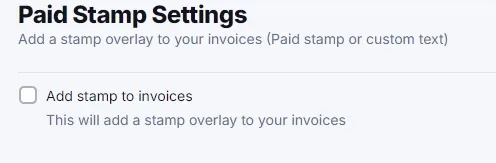
- Custom stamp text, color, style and position
- Only appears on invoices marked as paid
QR Code
Add a scannable QR code to your documents, with dynamic content.
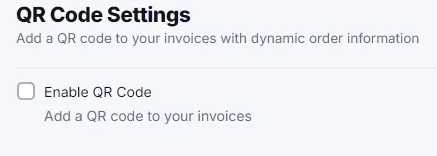
- Point it at the order number, the order's page, or a fully custom link/text
- Supports dynamic variables — see the Dynamic Variables Reference below
https://mystore.com/track?order=$OrderNumber → a real, scannable link per invoiceTax Override BASIC+
Override the tax rate for specific products or countries.
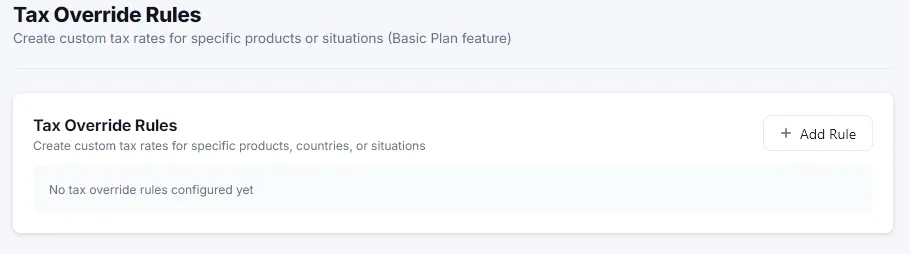
- Rules by product title or by country
- Takes priority over Shopify's own calculated tax rate on the document
Return Form
A printable return form with your own reason codes.
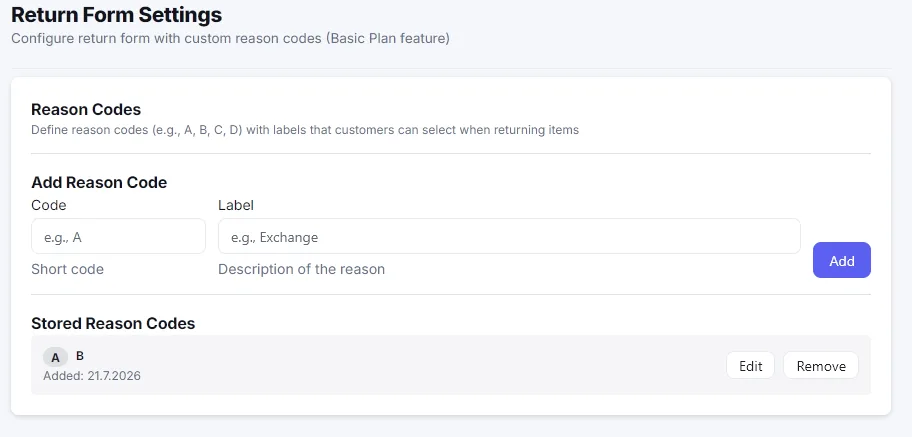
- Define the reason codes customers can choose from (e.g. "Wrong size", "Damaged", "Changed my mind")
- Downloadable alongside the invoice on Basic/Business plans
Download Filename
Customize how bulk-downloaded files are named.
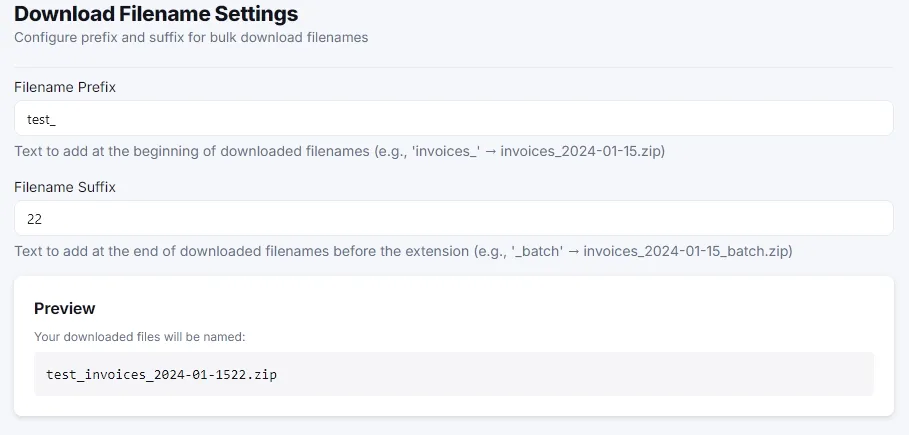
- Set a prefix and suffix applied to every filename in a bulk ZIP download
- A live preview shows exactly what the resulting filename will look like
test_ + Suffix 22 → test_invoices_2024-01-1522.zipNumbering, Payments & Reminders
Custom invoice numbers, automatic sending and payment reminders.
Invoice Numbering BASIC+
Add a custom prefix/suffix to Shopify's order number.
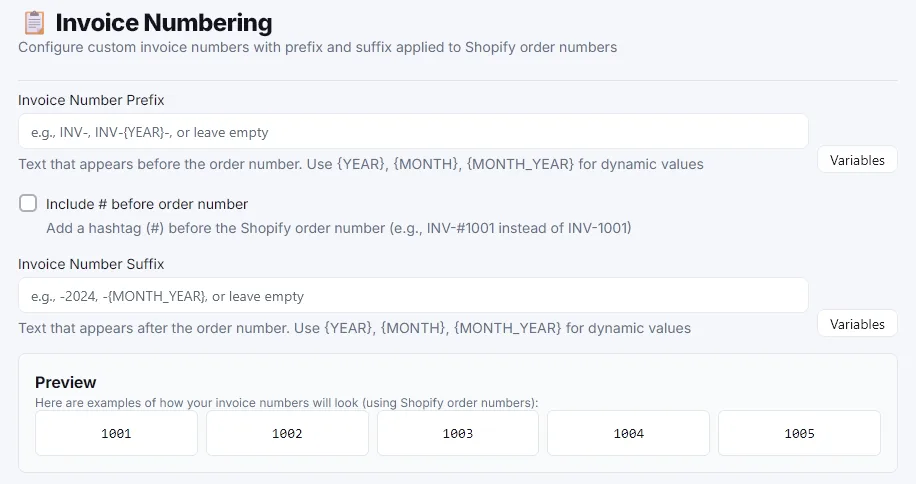
- Prefix and suffix fields, each supporting dynamic variables — see below
- Optional "#" before the order number
- Live preview shows exactly how numbers will look before you save
INV-{YEAR}- → INV-2026-1001, INV-2026-1002, …Payment & Email Webhook
Where payment info shows up, and what triggers automatic sending.
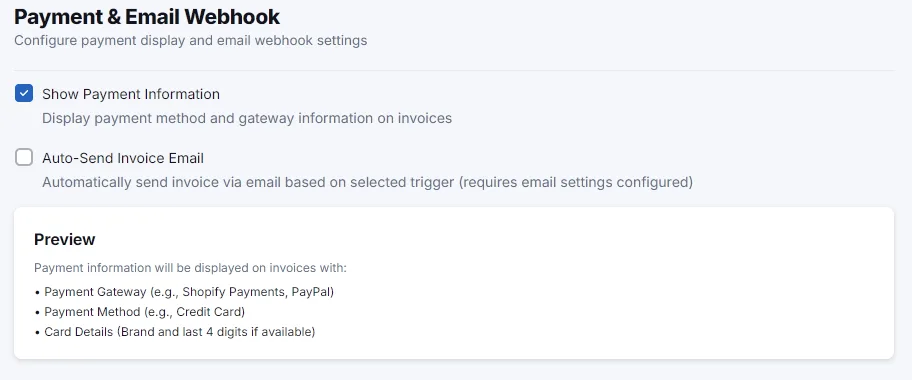
- Show payment gateway/method on documents (Basic+)
- Auto-Send Invoice Email toggle — the actual switch for automatic sending
- Choose the trigger: "order paid" or "order created"
Reminder Settings
Configure up to 4 payment reminder levels for manual sending.
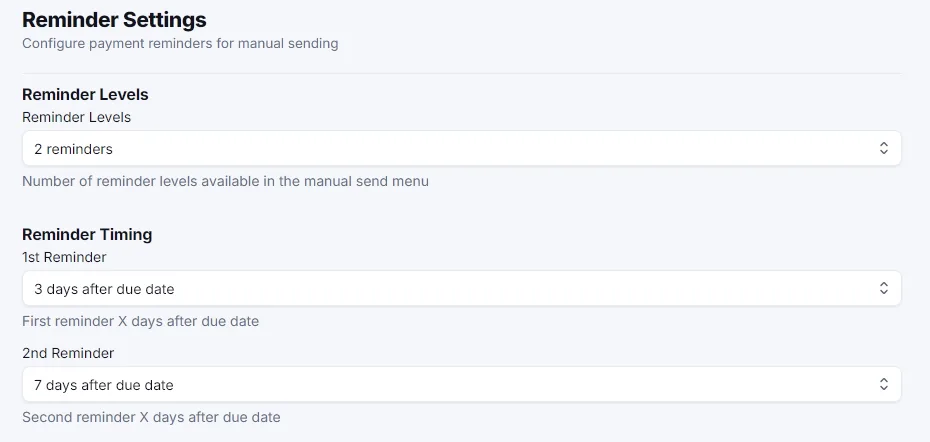
- Choose how many reminder levels are available (1–4)
- Set timing for each level, e.g. "3 days after due date", "7 days after due date"
- Reminders are always sent manually, from the Send Invoice screen's "Send Reminder" tab
- Subject and message text for each level are edited separately, in Email Settings
System
Housekeeping — resetting your configuration.
Reset Settings
Start over, without losing your history.
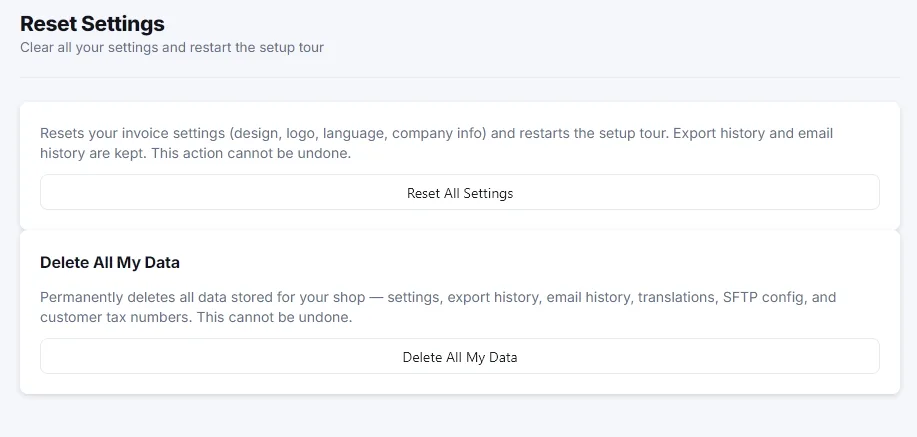
- Restarts the setup tour and clears design/company configuration
- Your invoice, download and email history is kept
- "Delete All My Data" (a separate, irreversible action) also removes history — use with care
Dynamic Variables Reference
The app uses two different variable styles, depending on where you're editing:
$Variable — Email Settings → Email Template · Settings → QR Code custom content| Variable | Resolves to | Example |
|---|---|---|
$DocumentType | The kind of document being sent | "Invoice", "Packing Slip" |
$OrderNumber | The Shopify order number | 1116 |
$OrderGID | The order's internal Shopify GID, useful for building direct links | gid://shopify/Order/… |
$CustomerName | The customer's full name | "Max Mustermann" |
$DownloadLink | A direct download link to the document | https://… |
$DownloadText | The label configured for the download button | "Download your invoice" |
$ShopName | Your Shopify store's name | "My Store" |
$ShopDomain | Your store's domain | mystore.myshopify.com |
| Variable | Resolves to | Example |
|---|---|---|
{YEAR} | Current 4-digit year | 2026 |
{MONTH} | Current 2-digit month | 07 |
{MONTH_YEAR} | Month and year combined | 07-2026 |
$DocumentType for order $OrderNumber → "Invoice for order 1116"https://mystore.com/track?order=$OrderNumberINV-{YEAR}- → INV-2026-1001Variables are case-sensitive and must be typed exactly as shown, including the $ or curly braces. The Insert Variable / Variables buttons next to each field insert them for you, so you don't have to remember the exact spelling.
Social Media
Add your social links to the document footer.